Home
0121 339 5200 Call Us Now To Book Our Free Collection Service For Your Unwanted Gaming Items. Only Within 20 Miles Of Dudley Limited Availability. Booking's To Be Made Before 2pm

This is because any personal data stored on the device can potentially fall into the wrong hands, putting you and your personal information at risk. That’s where GDPR comes in. The GDPR is a set of guidelines that regulate how personal data is collected, processed, and stored by organizations. As a seller, you have a responsibility to ensure that your personal data is removed from the device before it is sold. This protects not only your own privacy, but also the privacy of the person who buys the device from you.
So, in short, removing your personal data from your electronic device before selling it is important for protecting your privacy and complying with the GDPR guidelines. Taking a few minutes to properly erase your data can go a long way in ensuring that your personal information stays safe. Please follow these guidelines on how to reset your device safely. Please note that this process cannot be undone, so make sure to back up any important data before you erase it. Select from the devices below and follow the instructions carefully.
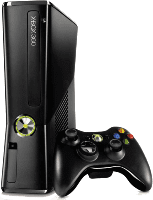
  1. Turn on your Xbox 360 S/E console and sign into your Xbox Live account.
  2. Go to “System Settings.” You can access this by pressing the Xbox button on your controller and then selecting “System Settings.”
  3. Select “Console Settings.”
  4. Select “Storage.”
  5. Select the storage device that you want to reset, typically the “Hard Drive.”
  6. Select “Format.”
  7. Enter the serial number of your Xbox 360 S/E console when prompted.
  8. Confirm that you want to erase all data by selecting “Yes.”
  9. Wait for the formatting process to complete. This may take several minutes.
  10. When the process is complete, select “Done” to exit the “Storage” menu.
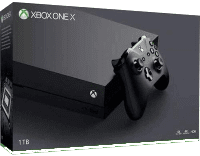
  1. Turn on your Xbox One X console and sign into your Xbox Live account.
  2. Go to “System Settings.” You can access this by pressing the Xbox button on your controller and then selecting “System Settings.”
  3. Select “System.”
  4. Select “Console Info & Updates.”
  5. Select “Reset Console.”
  6. Select “Full Factory Reset.”
  7. Confirm that you want to erase all data by selecting “Reset.”
  8. Wait for the reset process to complete. This may take several minutes.
  9. When the process is complete, your Xbox One X console will restart and be reset to its factory settings.
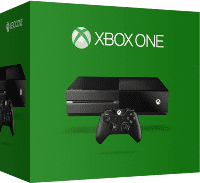
  1. Turn on your Xbox One original console and sign into your Xbox Live account.
  2. Go to “System Settings.” You can access this by pressing the Xbox button on your controller and then selecting “System Settings.”
  3. Select “System.”
  4. Select “Console Info & Updates.”
  5. Select “Reset Console.”
  6. Select “Full Factory Reset.”
  7. Confirm that you want to erase all data by selecting “Reset.”
  8. Wait for the reset process to complete. This may take several minutes.
  9. When the process is complete, your Xbox One X console will restart and be reset to its factory settings.
  1. Turn on your Xbox Series S console and sign into your Xbox Live account.
  2. Go to “System Settings.” You can access this by pressing the Xbox button on your controller and then selecting “System Settings.”
  3. Select “System.”
  4. Select “Console Info & Updates.”
  5. Select “Reset Console.”
  6. Select “Full Factory Reset.”
  7. Confirm that you want to erase all data by selecting “Reset.”
  8. Wait for the reset process to complete. This may take several minutes.
  9. When the process is complete, your Xbox One X console will restart and be reset to its factory settings.
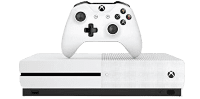
  1. Turn on your Xbox One S console and sign into your Xbox Live account.
  2. Go to “System Settings.” You can access this by pressing the Xbox button on your controller and then selecting “System Settings.”
  3. Select “System.”
  4. Select “Console Info & Updates.”
  5. Select “Reset Console.”
  6. Select “Full Factory Reset.”
  7. Confirm that you want to erase all data by selecting “Reset.”
  8. Wait for the reset process to complete. This may take several minutes.
  9. When the process is complete, your Xbox One X console will restart and be reset to its factory settings.
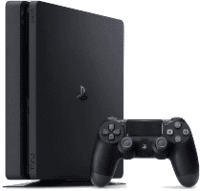
  1. Turn off your PlayStation 4 console.
  2. Locate the power button on your console and hold it down until you hear two beeps. The first beep will occur after 7 seconds, and the second beep will occur after another 7 seconds.
  3. Connect a DualShock 4 controller to your PlayStation 4 using a USB cable.
  4. Press the PS button on the DualShock 4 controller to access the main menu.
  5. Select “Settings.”
  6. Select “Initialization.”
  7. Select “Full Initialization.”
  8. Confirm that you want to erase all data by selecting “Yes.”
  9. Wait for the reset process to complete. This may take several minutes.
  10. When the process is complete, your PlayStation 4 console will restart and be reset to its factory settings.
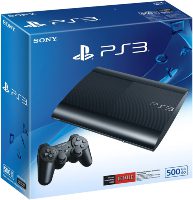
  1. Turn off your PlayStation 3 console.
  2. Hold down the power button until you hear two beeps. The first beep will occur after 7 seconds, and the second beep will occur after another 7 seconds.
  3. Connect a DualShock 3 controller to your PlayStation 3 using a USB cable
  4. Press the PS button on the DualShock 3 controller to access the main menu.
  5. Select “Settings.”
  6. Select “System Settings.”
  7. Select “Restore PS3 System.”
  8. Confirm that you want to erase all data by selecting “Yes.”
  9. Wait for the reset process to complete. This may take several minutes.
  10. When the process is complete, your PlayStation 3 console will restart and be reset to its factory settings.
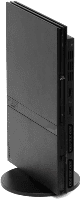
  1. Turn off your PlayStation 2 console.
  2. Hold down the power button until you hear two beeps. The first beep will occur after 7 seconds, and the second beep will occur after another 7 seconds.
  3. Connect a DualShock 2 controller to your PlayStation 2 using a USB cable
  4. Press the PS button on the DualShock 2 controller to access the main menu.
  5. Select “Settings.”
  6. Select “System Configuration.”
  7. Select “Restore Default Settings.”
  8. Confirm that you want to erase all data by selecting “Yes.”
  9. Wait for the reset process to complete. This may take several minutes.
  10. When the process is complete, your PlayStation 3 console will restart and be reset to its factory settings.
  1. Turn off your PlayStation Vita console.
  2. Hold down the power button until the device vibrates.
  3. Release the power button, then immediately hold down the power button and the volume up button until the device vibrates again.
  4. Release both buttons and select the “Factory Reset” option in the recovery menu.
  5. Confirm that you want to erase all data by selecting “Yes.”
  6. Wait for the reset process to complete. This may take several minutes.
  7. When the process is complete, your PlayStation Vita console will restart and be reset to its factory settings.
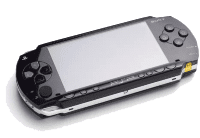
  1. Turn off your PSP Original Console.
  2. Hold down the R button and press the power button to turn on the device.
  3. Release the R button when the device vibrates.
  4. Select “Settings.”
  5. Select “System Settings.”
  6. Select “Format Memory Stick.”
  7. Confirm that you want to erase all data by selecting “Yes.”
  8. Wait for the reset process to complete. This may take several minutes.
  9. When the process is complete, your PSP Original Console will restart and be reset to its factory settings.
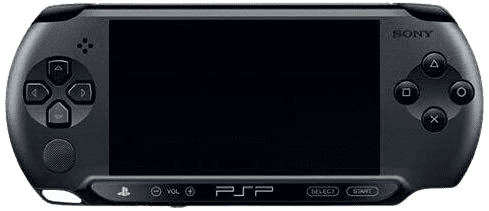
  1. Turn off your PSP Original E1000 Street Console.
  2. Hold down the R button and press the power button to turn on the device.
  3. Release the R button when the device vibrates.
  4. Select “Settings.”
  5. Select “System Settings.”
  6. Select “Format Memory Stick.”
  7. Confirm that you want to erase all data by selecting “Yes.”
  8. Wait for the reset process to complete. This may take several minutes.
  9. When the process is complete, your PSP Original Console will restart and be reset to its factory settings.
  1. Turn off your PSP Console.
  2. Hold down the R button and press the power button to turn on the device.
  3. Release the R button when the device vibrates.
  4. Select “Settings.”
  5. Select “System Settings.”
  6. Select “Format Memory Stick.”
  7. Confirm that you want to erase all data by selecting “Yes.”
  8. Wait for the reset process to complete. This may take several minutes.
  9. When the process is complete, your PSP Original Console will restart and be reset to its factory settings.
  1. Turn off your PSP Console.
  2. Hold down the R button and press the power button to turn on the device.
  3. Release the R button when the device vibrates.
  4. Select “Settings.”
  5. Select “System Settings.”
  6. Select “Format Memory Stick.”
  7. Confirm that you want to erase all data by selecting “Yes.”
  8. Wait for the reset process to complete. This may take several minutes.
  9. When the process is complete, your PSP Original Console will restart and be reset to its factory settings.
  1. From the HOME menu, select “System Settings.”
  2. Scroll down to “System” and select “Formatting Options.”
  3. Select “Restore Factory Defaults.”
  4. Choose “Restore.”
  5. Follow the on-screen instructions to complete the factory reset process.
  6. Select “Format Memory Stick.”